
Run a Free Test Election
Last updated September 1, 2026

SnapBallot provides an easy way to learn, test, and run online elections without needing technical support. Whether you're conducting a committee vote, showing board members how online voting works, or experimenting with a small election before a larger rollout, the free plan offers a simple, risk-free way to get started.
You can create a free election for up to 15 voters: no IT support, software installation, or technical expertise is required. Simply create an account, build your ballot, invite voters, and review the results online. The guided setup makes it easy to build a professional-looking ballot in just a few minutes.
Follow these easy steps to create your test election.
Step 1: Sign Up for a Free Account
The platform is designed to be simple and user-friendly, allowing organizations to set up elections without specialized training.
- Visit https://my.snapballot.app/Identity/Account/Register.
- Create your free account.

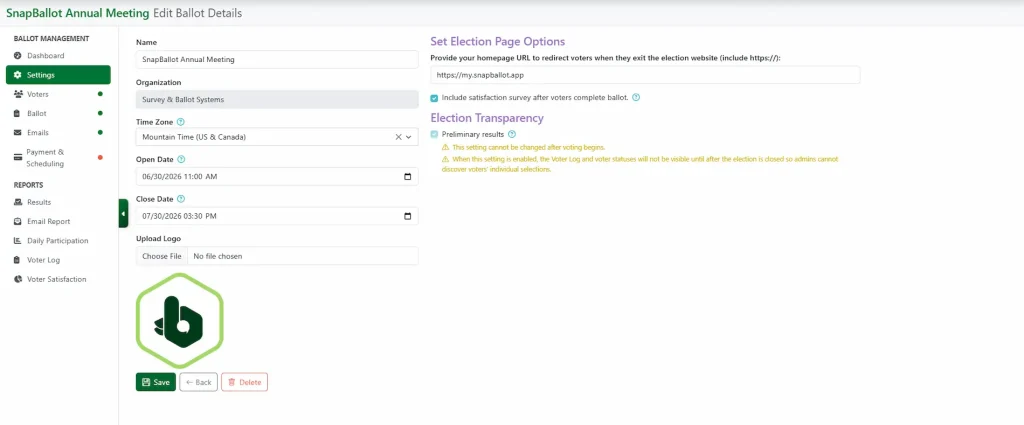
Once you’re logged in, a dashboard will display a list of your elections as they are created. To create a new election, click Create New Ballot and type in the name of your election.
- Choose your Time Zone and set the open and close dates.
- Upload your Logo.
- Add your homepage URL, or the page to redirect voters to when they exit the election website.
- Select the optional complimentary voter satisfaction survey.
- Optionally view preliminary results.
The preliminary results setting allows administrators to view live vote totals while voting is in progress. However, when it’s enabled, the Voter Log and Voter Status will not be visible until after the election closes. This helps maintain voter privacy and election integrity until the election is concluded. This setting cannot be changed once voting begins. There are also helpful tips to guide you.
Step 2: Create Your Ballot
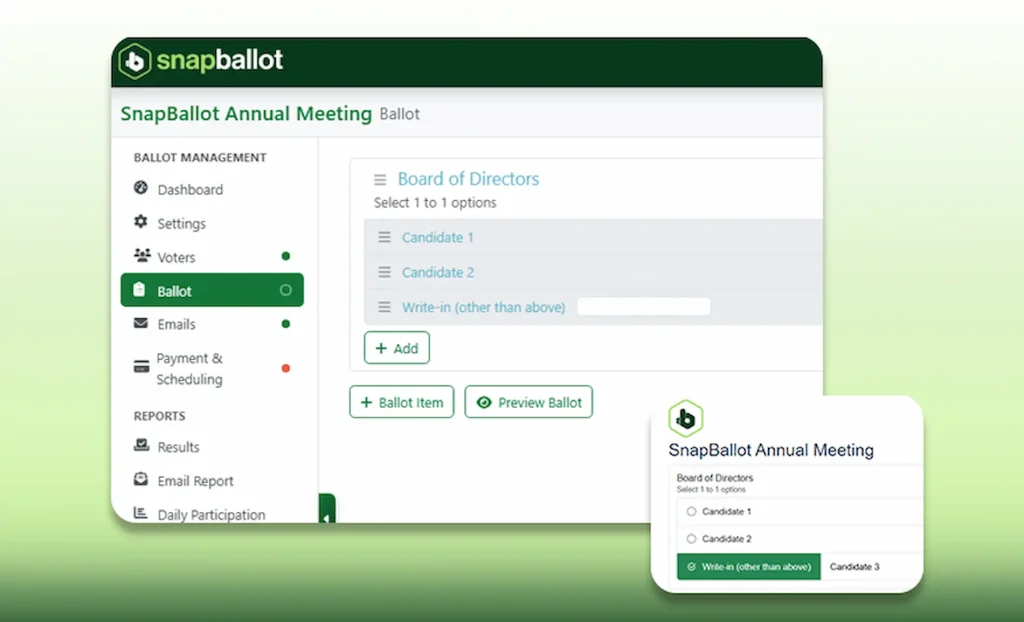
Navigate to Ballot from the left menu.
You can:
- View the helpful video and tips.
- Add ballot items.
- Create candidate races.
- Include biographies, photos, links, and supporting documents.
- Define voting options.
- Preview and test the ballot before sending it to voters.
Once your ballot is completed, be sure to SAVE.
Tip: One or two basic ballot items is usually enough to get a feel for how easy it is to set up a test election.
Step 3: Invite Your Voters
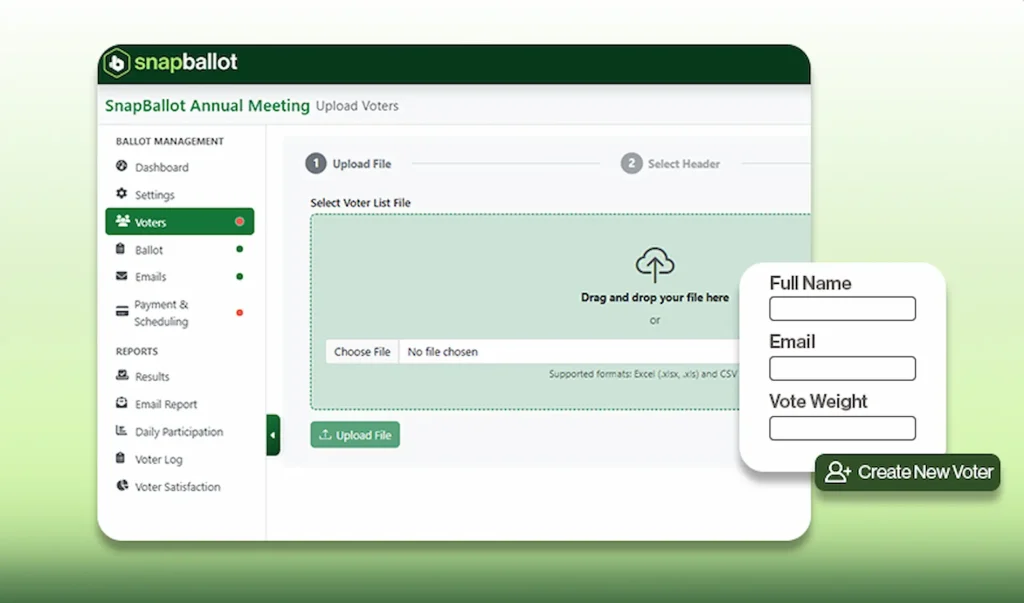
Navigate to Voters from the left menu.
Add your voter list, either by upload or manually one by one. For a free test election, many organizations simply add a small group of volunteers, committee members, or board members to experience the voting process firsthand.
You can:
- View the helpful video and tips.
- Include groups and types, such as region or status, to use for filtering.
- Search and edit voter records if needed on the Voters page.
Step 4: Send Election Emails
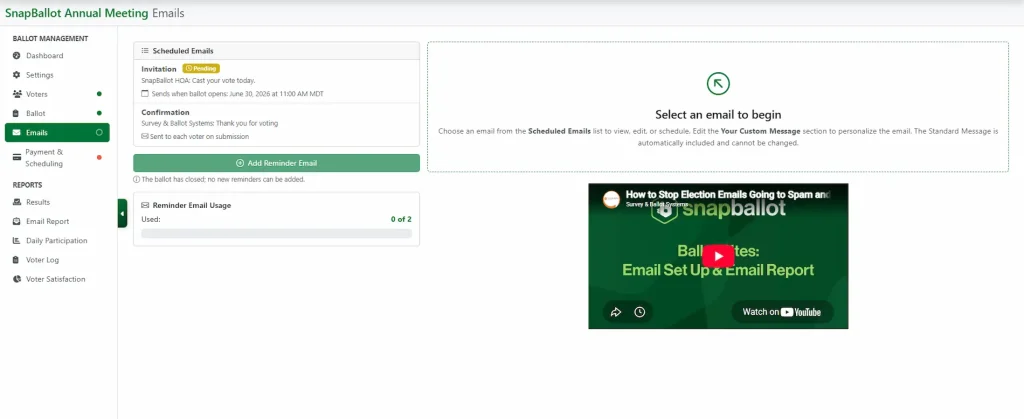
After voters have been added, you can customize your emails. All SnapBallot plans include one invitation email sent to voters at election open, one confirmation email sent to voters after they submit their ballot, and up to two reminder emails.
By default, plans include up to two reminder emails. If you would like to add additional email reminders, they are charged extra depending on your plan.
Reminders will only go out to anyone who has NOT voted. This allows administrators to manage communications from one location without needing additional software.
You can:
- View the helpful video and tips.
- Customize each email to personalize your message.
- Be confident in secure links that deactivate after a voter submits their ballot.
Step 5: Confirm Schedule and Free Tier Payment Status
Click Payment & Scheduling in the left menu. The Free Tier is shown here for under 15 voters. Confirm your open and close dates and, if you are all set and ready to go, simply click Confirm Schedule. You will see the ballot status, completed items, time zone, and open and close dates.
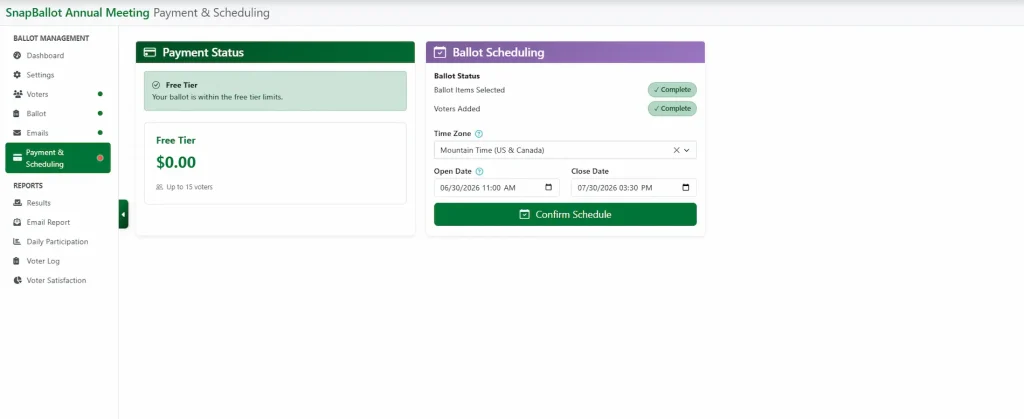
Paid plans are available based on the number of voters and will default to that number.

Step 6: Cast Vour Vote
When voters receive their invitation, they simply click the voting link and complete their ballot from any device.
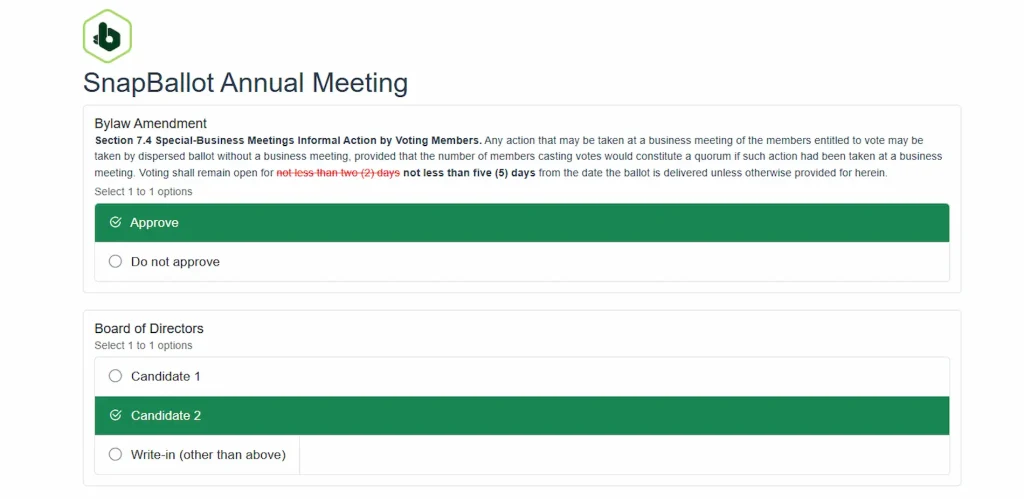
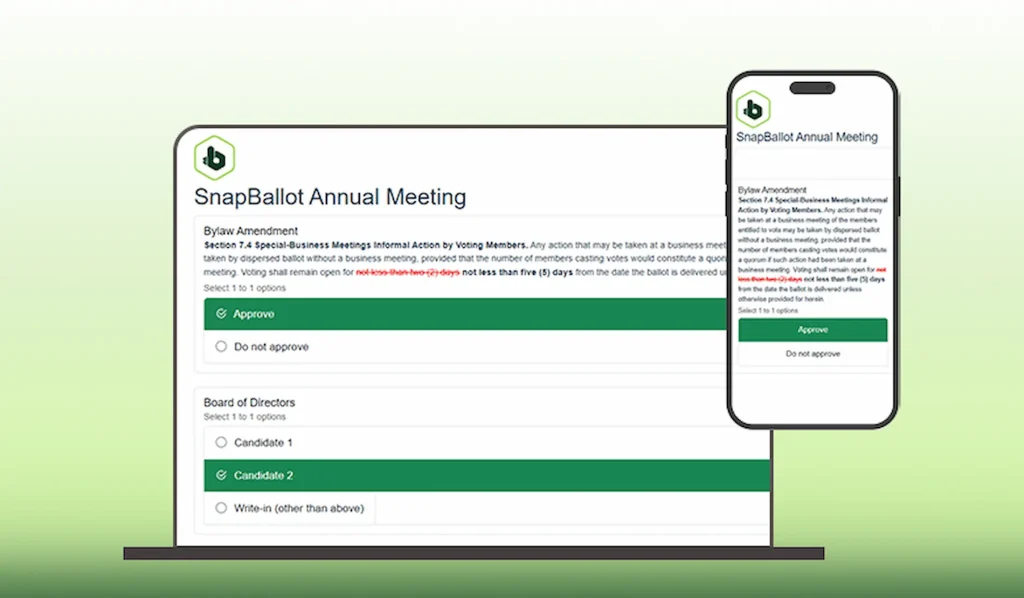
The voting experience is straightforward and mobile-friendly, making participation easy whether voters are using a computer, tablet, or smartphone.
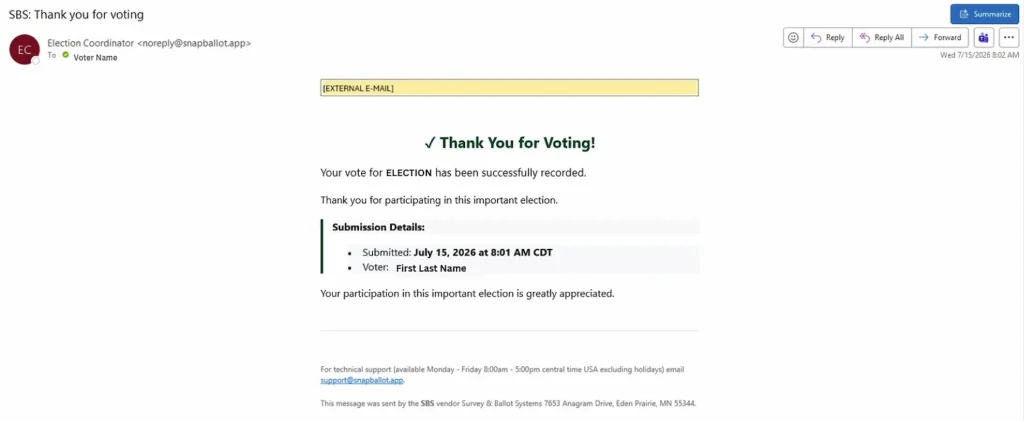
They will receive a confirmation email as soon as they have voted.
Step 7: Review Results
As votes are submitted, administrators can monitor participation and review election results.

SnapBallot includes reporting tools and voter activity tracking to help administrators understand participation and verify election activity. See the Reports section of the left navigation menu for these options:
- Email Report
- Daily Participation
- Voter Log
- Voter Satisfaction
You are now ready to go with your test election!
For more information, visit the SnapBallot Knowledge Base.
Related articles
Building Your Ballot
How to build your ballot — creating ballot items, adding candidates and biographies, setting voting rules and rotation, filtering by…
Email Set Up & The Email Report
Learn how to set up election emails in SnapBallot, including invitations, confirmations, reminders, and how to review email delivery reports.
SnapBallot Overview
A step-by-step overview of setting up an election in SnapBallot — from creating a ballot and uploading voters to configuring…
Payment & Scheduling in SnapBallot
Learn how to select a SnapBallot service plan, complete payment, manage additional reminder emails, and confirm your election schedule before…
From The Blog
Checklist: Preparing for Your Next HOA Election
Planning will help you run a successful, problem-free HOA election. Follow this checklist to confidently plan every stage of the…
Common Questions About Electronic Voting Systems for HOAs
Get answers to the most common questions about HOA electronic voting systems, including legality, security, compliance, accessibility, and homeowner adoption.

Everything You Need to Launch Your First Online HOA Election
Digitizing your HOA elections will help you save time, preserve resources, and give homeowners a better experience.