
Payment & Scheduling in SnapBallot
Last updated September 2, 2026
Payment & Scheduling is the last step in setting up your election. SnapBallot plans with under 15 voters are free, and your dashboard will indicate when payment is due or when the schedule needs to be confirmed.
The left navigation menu will show a red button for Payment & Scheduling status when payment is due, or if the schedule needs to be confirmed.
Note: Payment Required messages will show on the Dashboard at the top in Ballot Alerts, in the Payment & Scheduling section, and in Ballot Details in the right column.
Dashboard view

Payment & Scheduling view
From Payment & Scheduling in the left menu or from the dashboard, click Proceed to Service Level Selection & Payment.
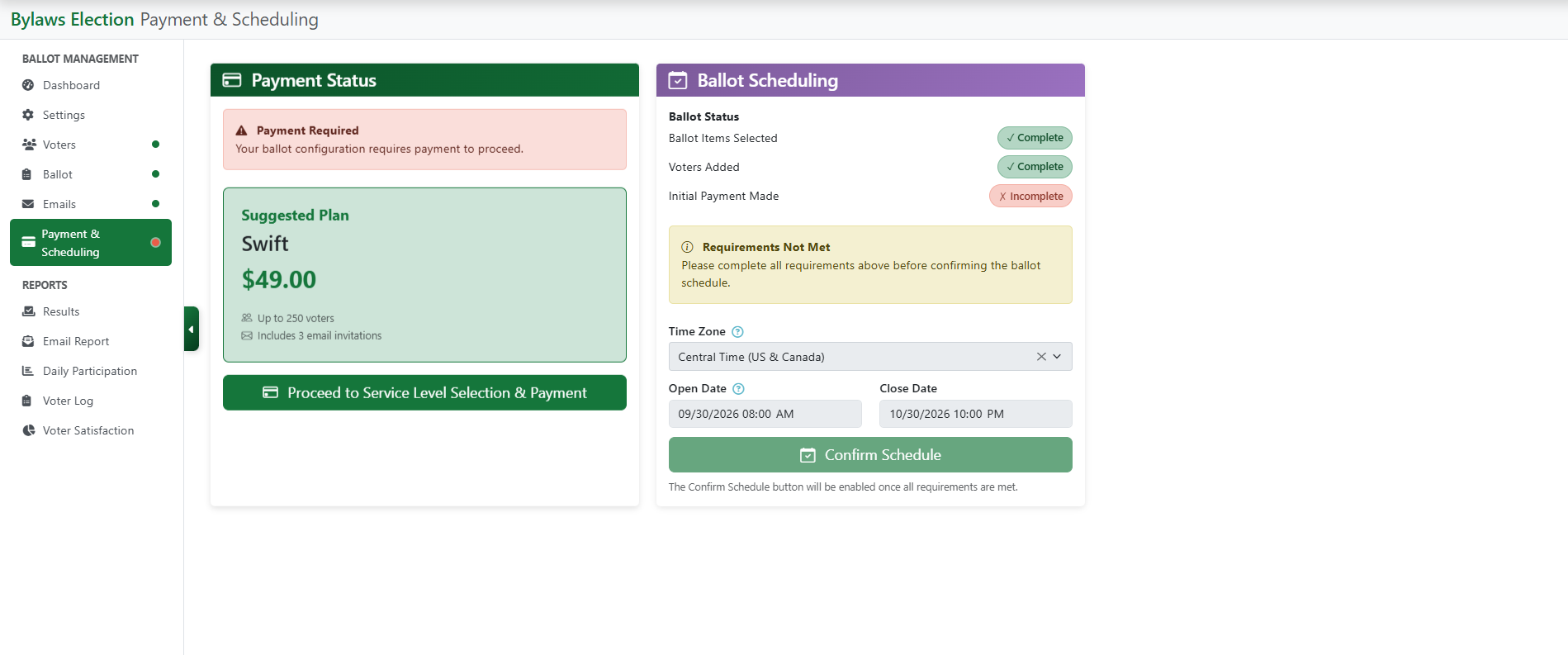
SnapBallot’s Service Plan will default based on the number of voters in your election. A message will display if you are over the free tier of 15 voters, and a suggested plan will show. You can select the recommended plan or choose a plan you prefer. A list of what is included in the plan is shown.
Note: Adding more voters than your current plan will result in a future charge if you have already paid.
Select your service plan
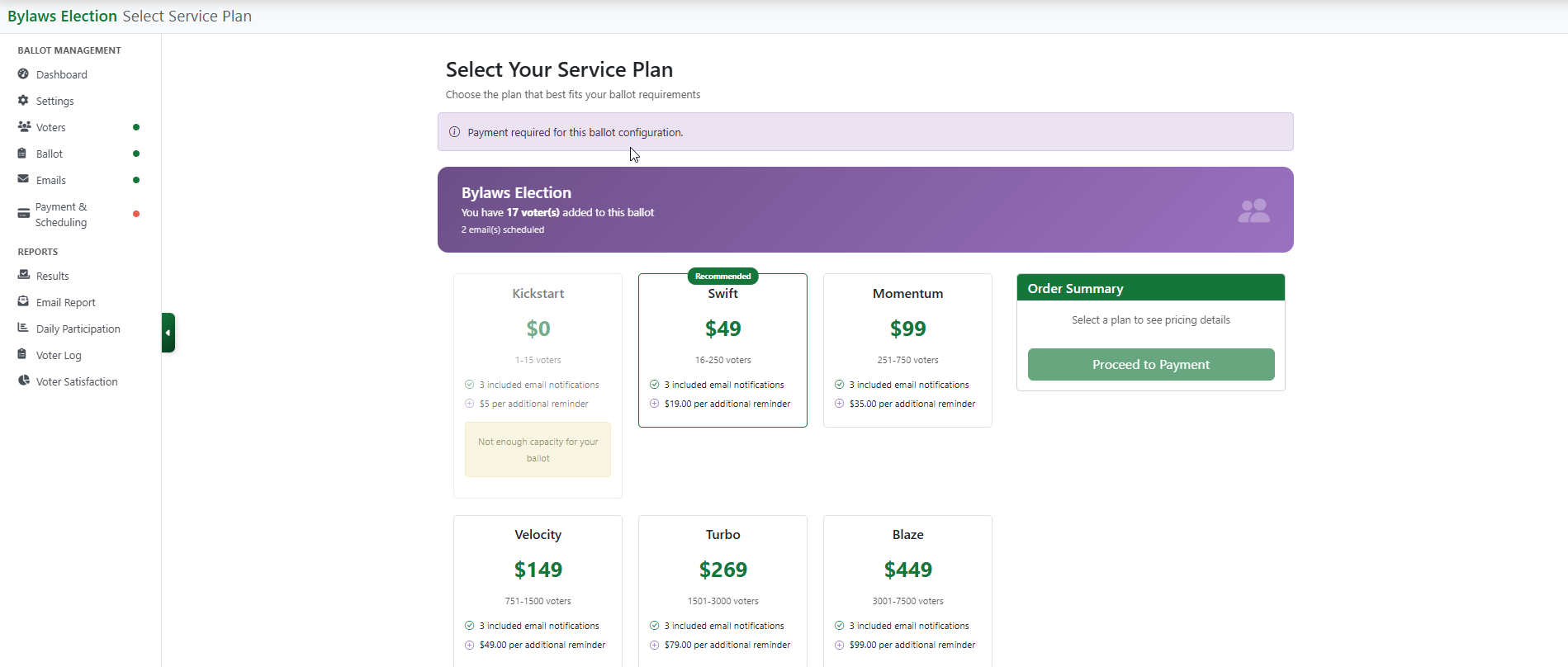
Click your plan to confirm.
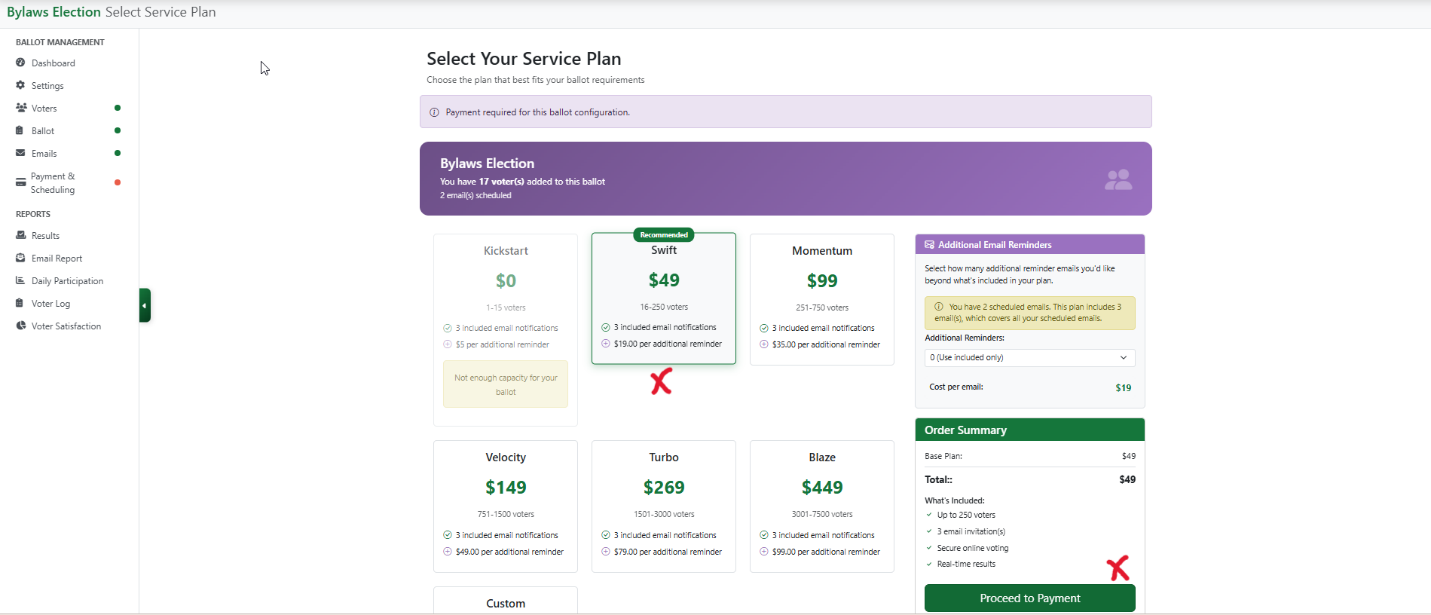
If you’d like to add additional reminder emails beyond the 2 free reminders included with every SnapBallot plan, you can select them here or add them from the Emails page before the election closes. It will notify you if there are additional charges for extra emails.

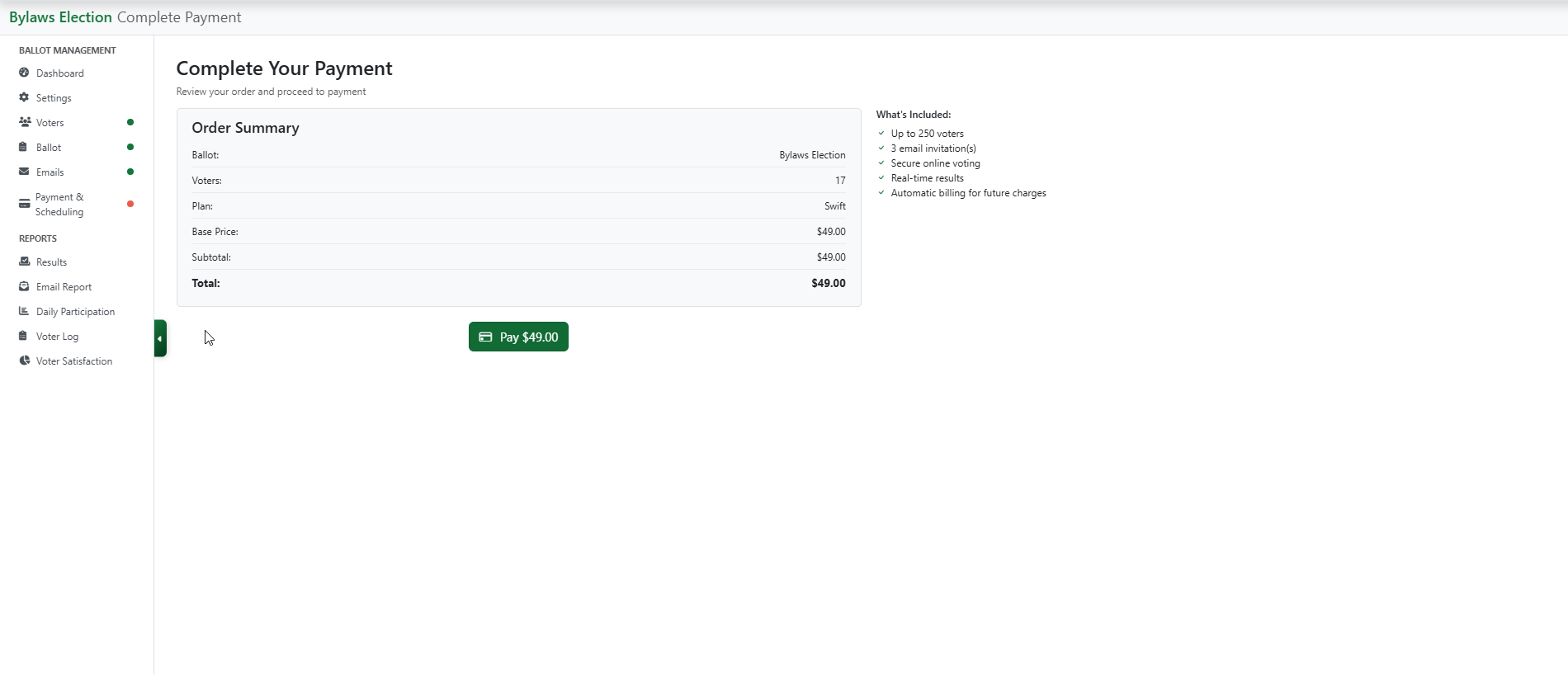
Review your order summary and complete payment
Your Order Summary displays what is included in your plan.
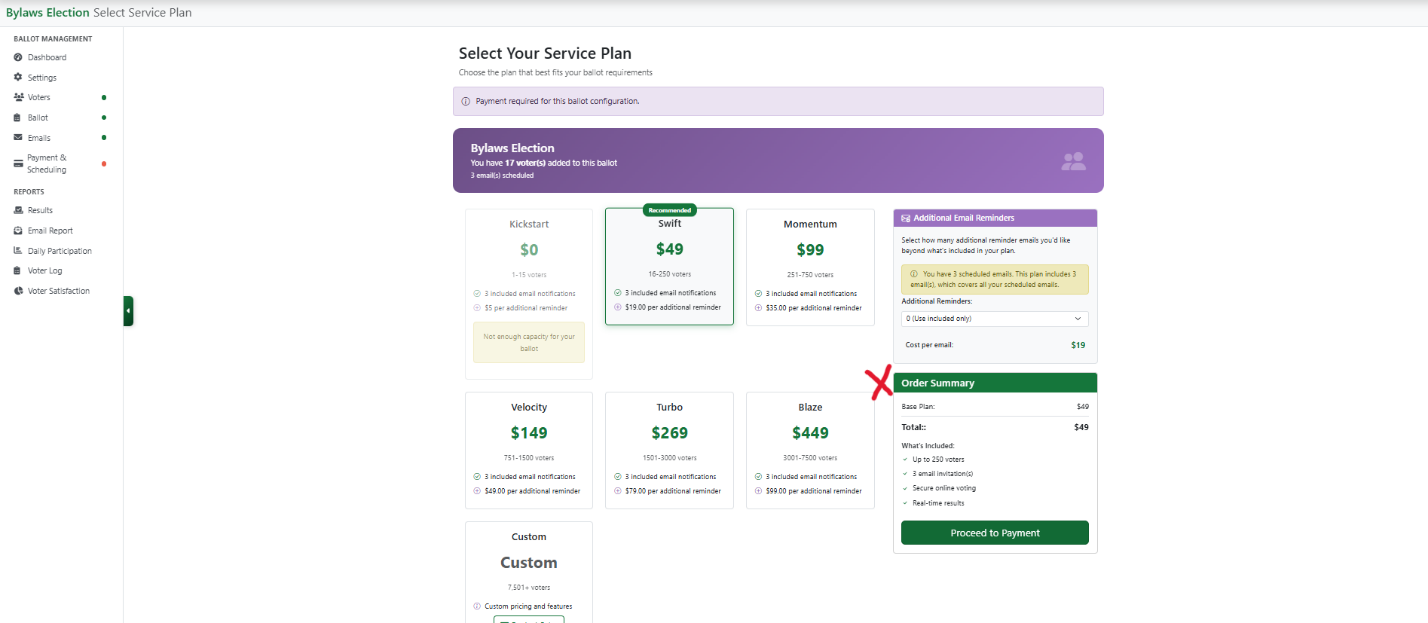
Click Proceed to Payments and Pay $ to complete your payment.
Fill in your payment details.
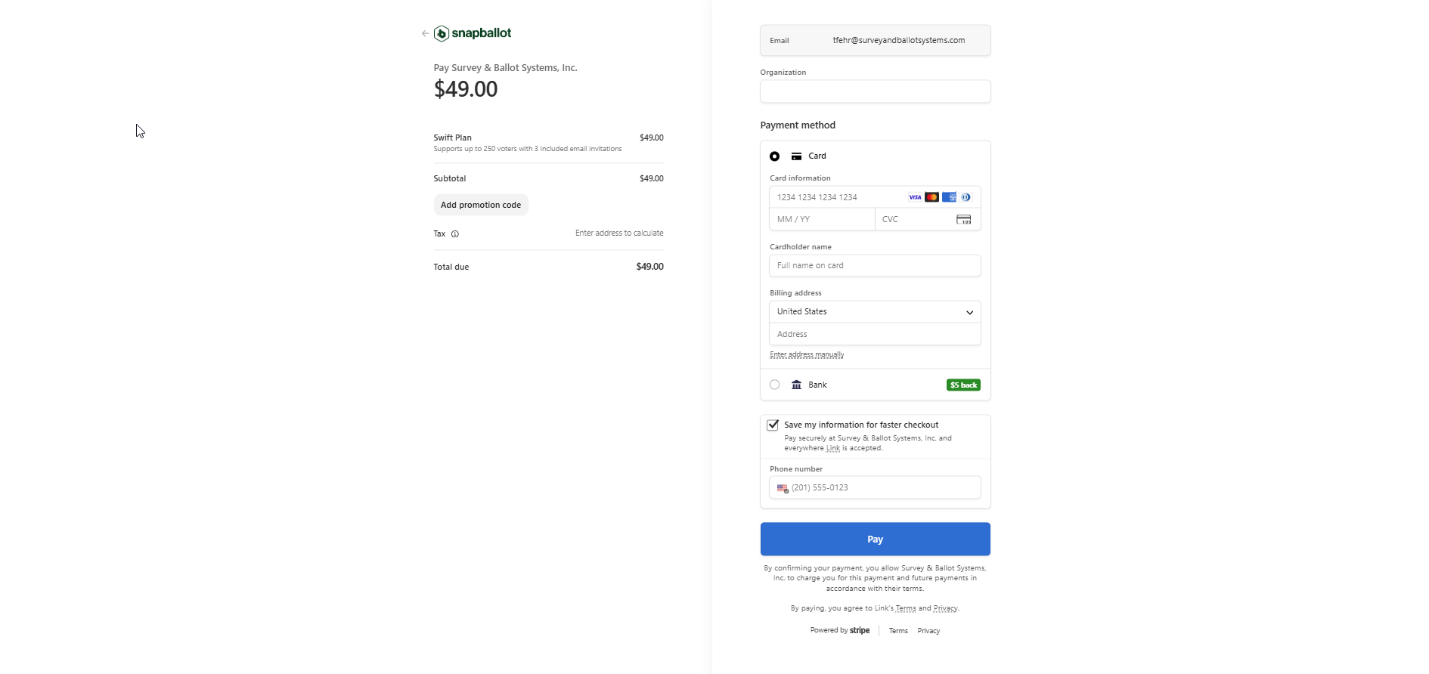
As soon as payment is complete, you'll get confirmation that it was successful, and you can go back to configuring your ballot or sending invitations.
Confirm your schedule
If you are ready to go, simply click Confirm Schedule from the Payment & Scheduling section. Payment must be made before you can confirm the schedule.
You will see the Ballot Status, completed items, time zone, and open and close dates.
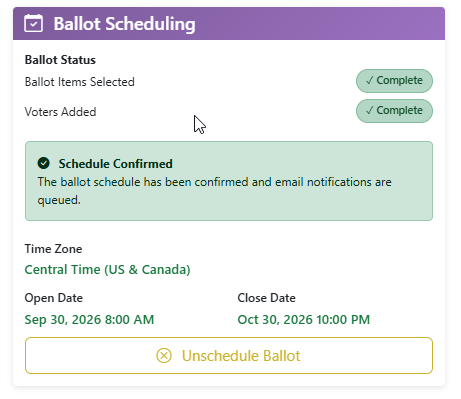
Your election is now ready to go!
To return to the Dashboard, click the SnapBallot logo in the upper left corner of the screen.
Related articles
Email Set Up & The Email Report
Learn how to set up election emails in SnapBallot, including invitations, confirmations, reminders, and how to review email delivery reports.
SnapBallot Overview
A step-by-step overview of setting up an election in SnapBallot — from creating a ballot and uploading voters to configuring…
Uploading Your Voter List
Learn how to upload your voter list in SnapBallot, map voter data, set filters, review upload, and manage voter information…
From The Blog
Checklist: Preparing for Your Next HOA Election
Planning will help you run a successful, problem-free HOA election. Follow this checklist to confidently plan every stage of the…
Digital Voting for Trade Associations: A Complete Guide
Learn how trade associations can implement secure digital voting, increase participation, meet quorum, and streamline election management.

HOA Election Systems: 8 Features That Save Money & Improve Elections
Discover 8 essential features of HOA election systems that save money, improve participation, and make elections more secure and efficient.