
Adding Organizations & Administrators
Last updated October 21, 2026
Learn how to create organizations in SnapBallot and invite administrators to manage either an entire organization or an individual ballot. These steps help keep elections organized when managing multiple communities.
View Transcript
00:00:00 — Welcome to Ballot Bites! Today, we're covering how to create organizations and administrators in SnapBallot. If you're an association management company or another organization managing multiple communities, SnapBallot allows you to create separate organizations within your account. We'll also show you how to add administrators at two different levels: organization administrators, who can access all elections within an organization, and ballot administrators, who have access only to a specific election.
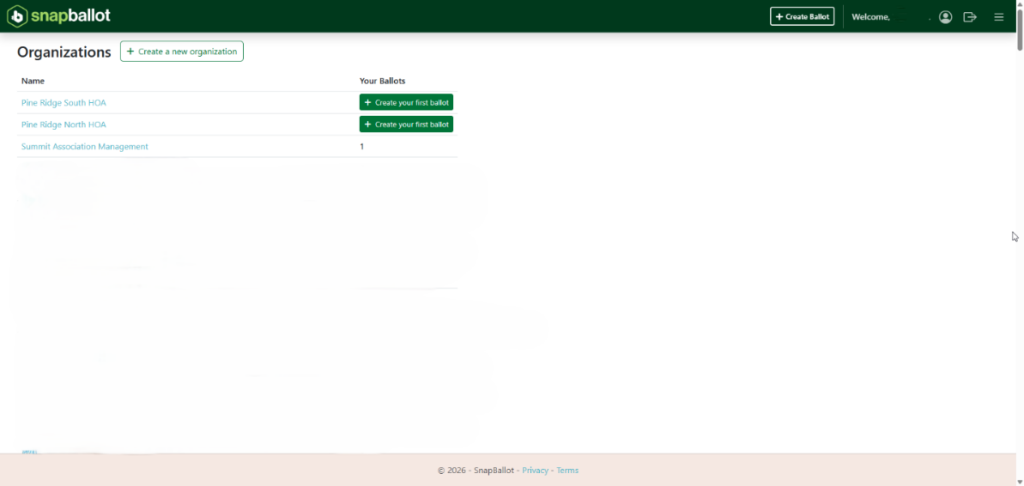
00:00:31 — After logging into your SnapBallot account, to create a new organization, open the navigation menu in the upper-right corner and select Organizations. Then select Create New Organization at the top of the page. You can create one or more organizations in your SnapBallot account. This is helpful for association management companies that manage multiple communities. For example, Summit Association Management may manage several HOAs that all have their own elections, such as Pine Ridge North HOA and Pine Ridge South HOA, which could each have their own separate elections. Once the organizations are created, they will be displayed on your organization dashboard.
00:01:16 — For adding administrators, SnapBallot gives you two options. Organization administrators have access to all elections within that organization. Ballot administrators have access only to the specific election or ballot they're invited to manage. To invite an administrator at the organization level, simply enter the email address of the person you'd like to invite. SnapBallot will send an invitation to that email address. They must accept the invitation and then verify their email address to be given admin access to that organization or ballot. An example of these emails is shown toward the end of the video. Admins can also be added later from an organization's page.
00:01:58 — There's also a second way to create an organization. If you're already creating a new ballot, you don't have to leave the process to create the organization first. From the Create Ballot page, you can either select an organization you've already created or add a new organization. This gives you the flexibility to create the organization first and then build an election, or create a new organization as part of the ballot setup.
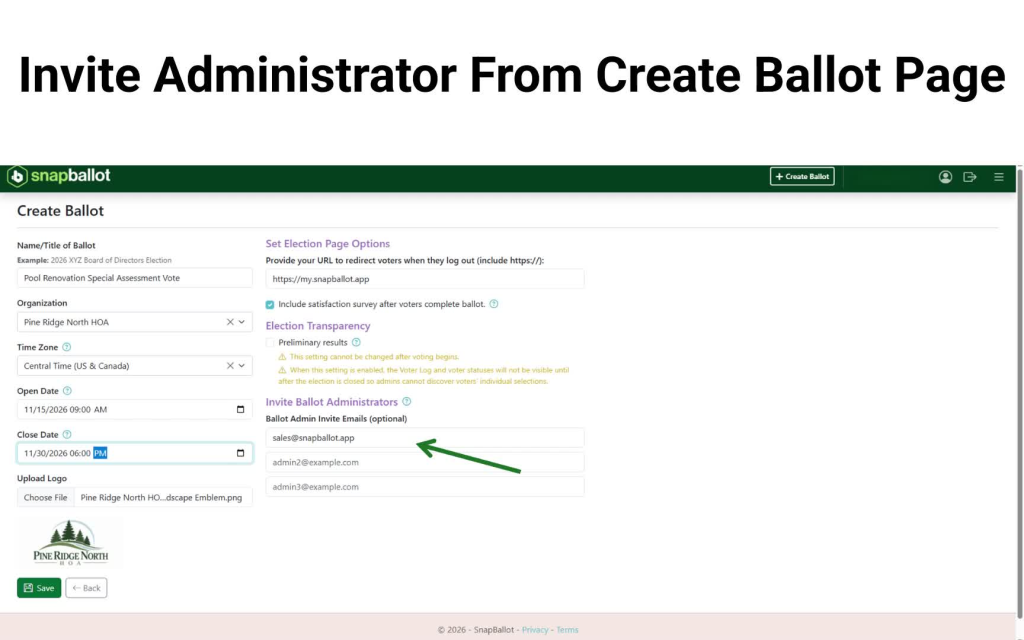
00:02:15 — Next, we'll show you how to add administrators to only a specific election or ballot. You can invite an administrator from the Create Ballot page. This administrator will have access only to the specific ballot or election they're invited to manage, but not to other elections within the organization. Enter the email address of the person you'd like to invite. SnapBallot will send an invitation to that email address when you click Save.
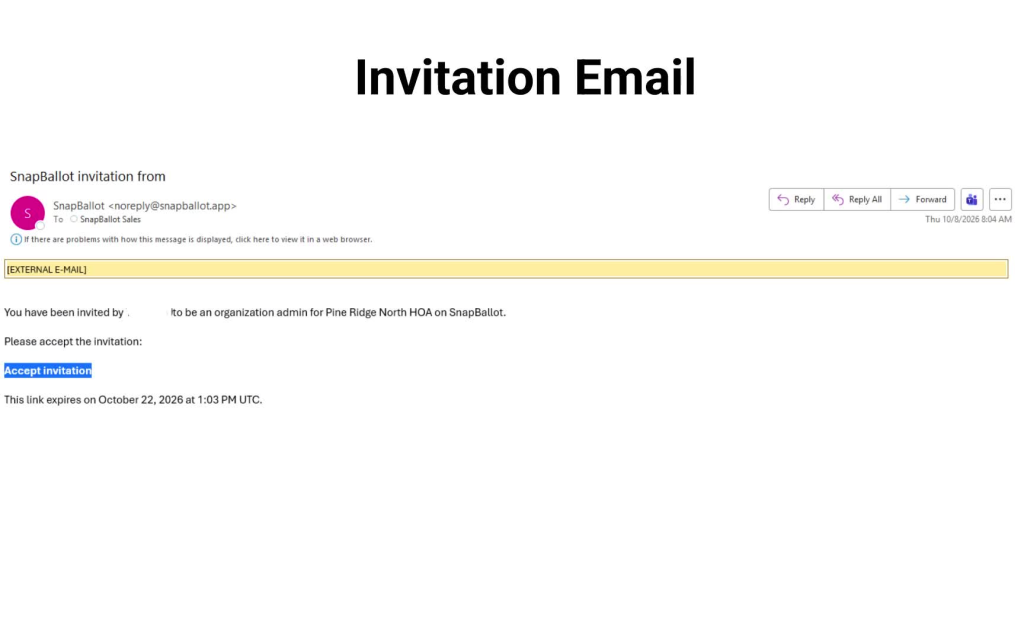
00:02:50 — Additional admins must accept the invitation and then verify their email address to be given admin access to that organization or ballot. The invitation email identifies the organization or ballot the administrator has been invited to manage and includes an expiration date.
00:03:09 — You can also check the status of an administrator's invitation. If an invitation is still pending, you can resend it, cancel it, or invite another person.
00:03:19 — And that's it! You can create separate organizations in SnapBallot and add administrators at either the organization level or the individual ballot level. For more SnapBallot tutorials and best practices, visit the SnapBallot knowledge base.
Understand the two admin levels in SnapBallot

- Organization administrators: can access all elections within a specific organization.
- Ballot administrators: can access only one specific election/ballot they are invited to manage.
- This setup is useful for association management companies or any team managing multiple communities.
Create a new organization from the Organizations page
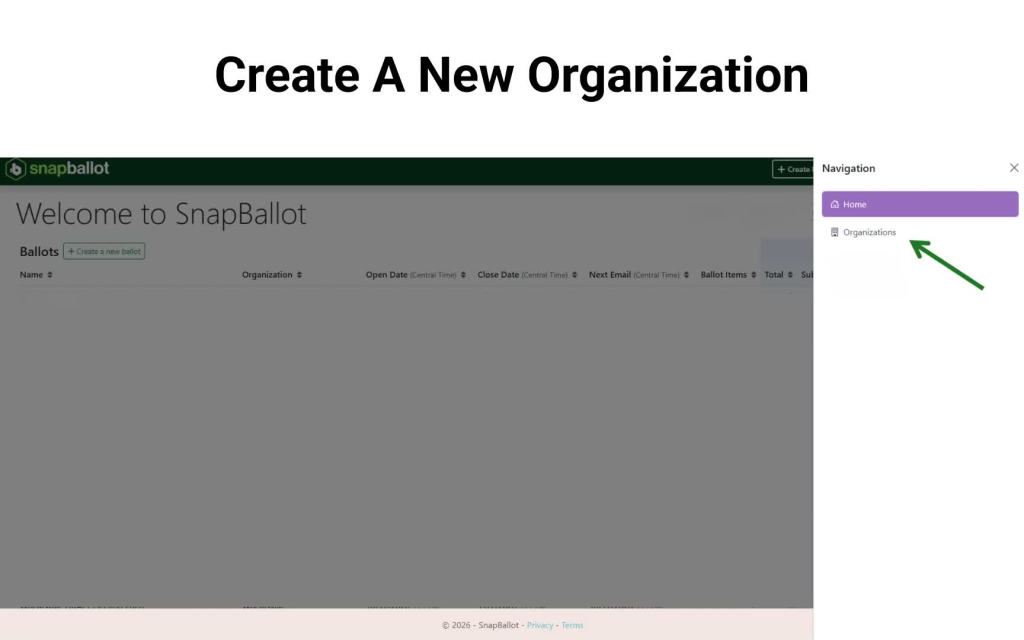
- After logging in, open the navigation menu in the upper-right corner.
- Select Organizations.
- Click Create New Organization at the top of the page.
- You can create one or more organizations in your SnapBallot account.
Use separate organizations for different communities
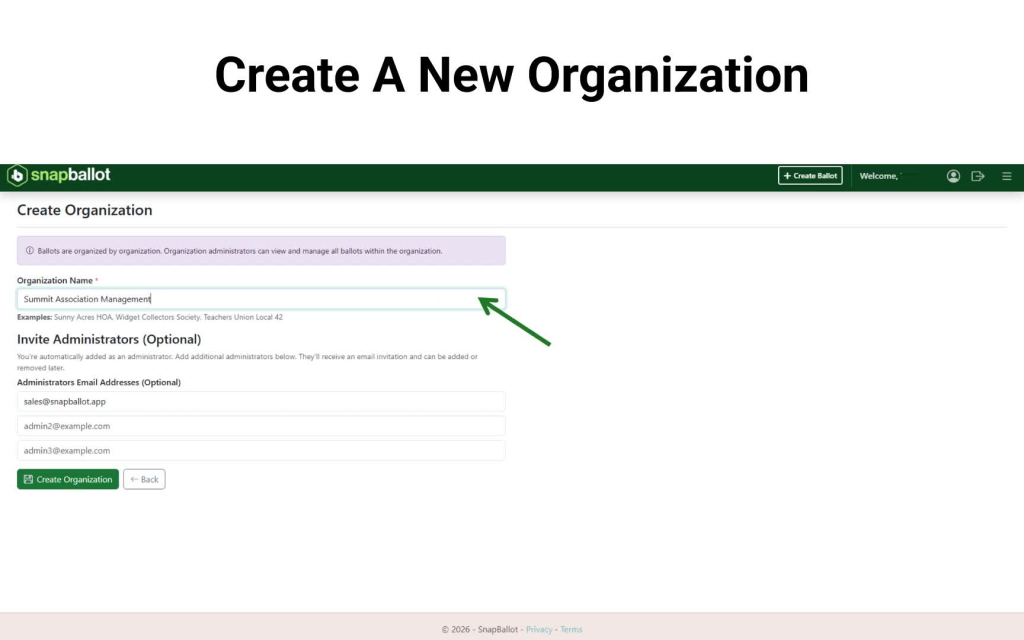
- Separate organizations help keep elections organized when managing multiple communities.
- Example:
- Summit Association Management may manage multiple HOAs.
- Pine Ridge North HOA and Pine Ridge South HOA can each be set up as separate organizations.
- Once created, organizations appear on your organization dashboard.
Invite an organization administrator
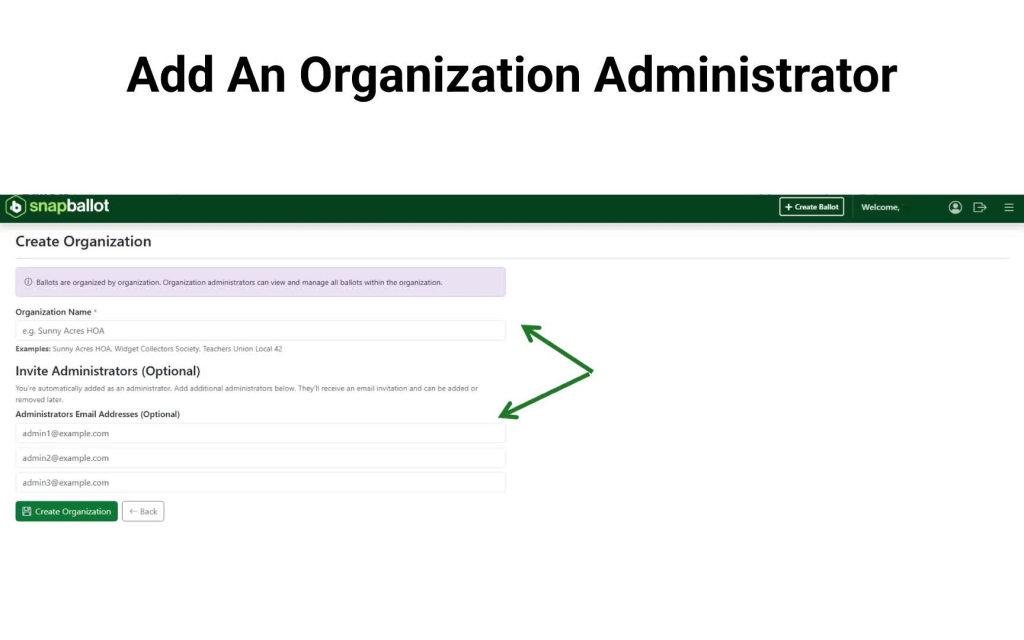
- To add an admin at the organization level, enter the person’s email address.
- SnapBallot sends an invitation to that email.
- The invitee must:
- Accept the invitation
- Verify their email address
- After that, they receive admin access to the organization.
Add admins later from the organization page if needed

- You can also add administrators later from the organization’s page.
- This gives you flexibility if you do not want to invite admins during initial setup.
Create a new organization while building a ballot
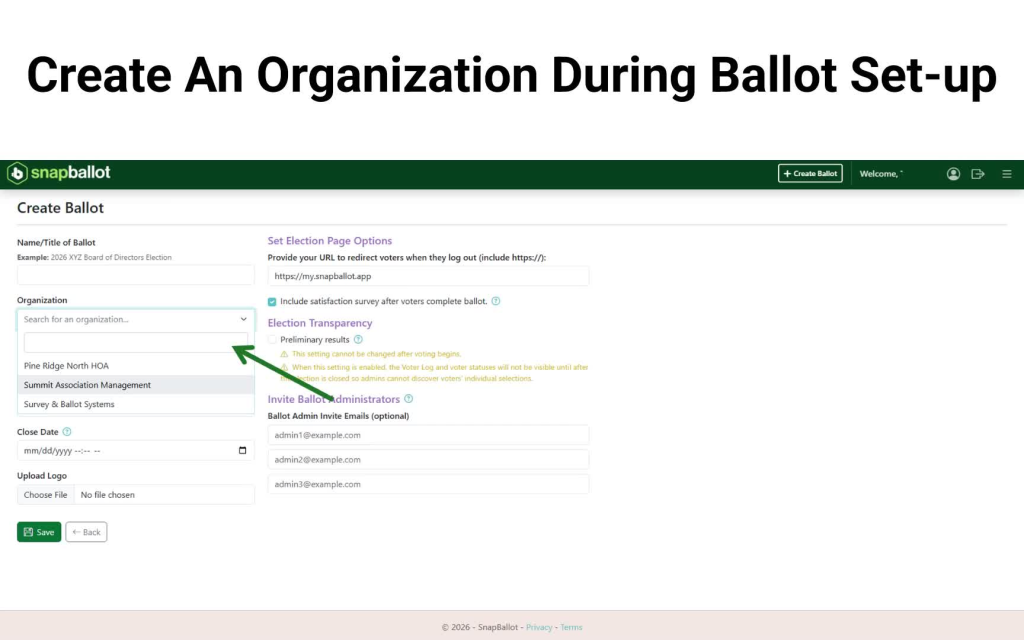
- You do not have to leave the ballot setup to create an organization first.
- From the Create Ballot page, you can:
- Select an existing organization
- Or add a new organization
- This lets you either:
- Create the organization first, then build the election
- Or create the organization as part of ballot setup
Invite a ballot administrator for one specific election
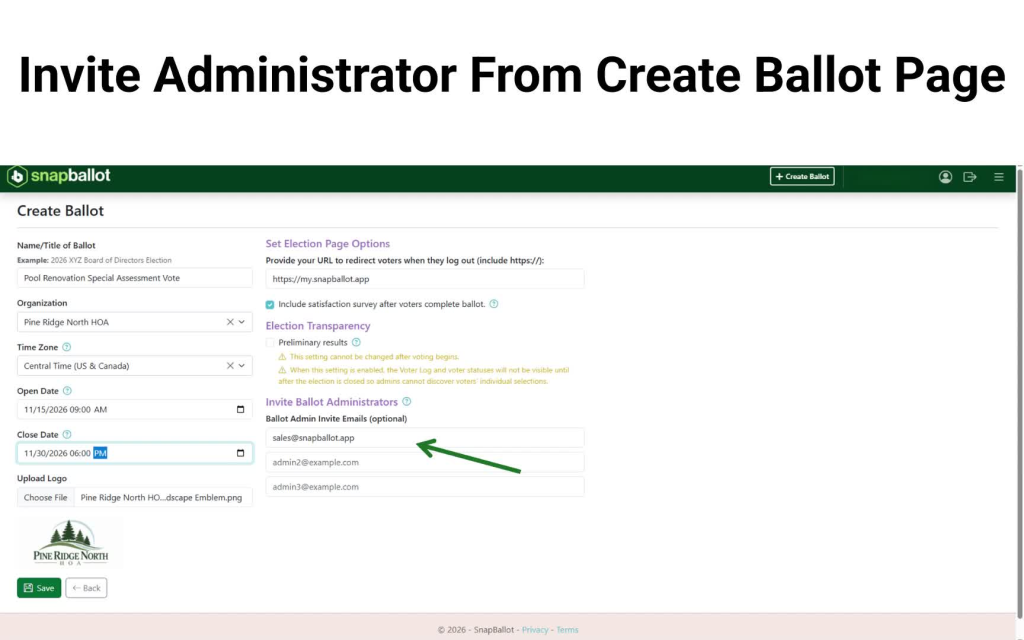
- From the Create Ballot page, you can invite an administrator for only that ballot/election.
- Enter the person’s email address.
- Click Save to send the invitation.
- This admin will not have access to other elections in the organization.
Complete the invitation and verification process
- The invited admin must:
- Accept the invite
- Verify their email address
- Only after both steps will they receive access.
- The invitation email includes:
- The organization or ballot name
- An expiration date
Monitor invitation status and manage pending invites
- You can check the status of an administrator invitation.
- If the invite is still pending, you can:
- Resend it
- Cancel it
- Invite another person

Key takeaway
- SnapBallot lets you create separate organizations within one account.
- You can add administrators at either:
- The organization level
- The individual ballot level
- For more help, visit the SnapBallot knowledge base.
Related articles
Building Your Ballot
How to build your ballot — creating ballot items, adding candidates and biographies, setting voting rules and rotation, filtering by…

How to View & Export Final Election Results
How to access, view, and export your election's final results — the report types available, real-time updates, and downloading to…
Run a Free Test Election
Learn how to create and run a free SnapBallot test election, from setting up your account and ballot to inviting…
SnapBallot Overview
A step-by-step overview of setting up an election in SnapBallot — from creating a ballot and uploading voters to configuring…
From The Blog

Checklist: Preparing for Your Next HOA Election
Planning will help you run a successful, problem-free HOA election. Follow this checklist to confidently plan every stage of the…

Common Questions About Electronic Voting Systems for HOAs
Get answers to the most common questions about HOA electronic voting systems, including legality, security, compliance, accessibility, and homeowner adoption.

Everything You Need to Launch Your First Online HOA Election
Digitizing your HOA elections will help you save time, preserve resources, and give homeowners a better experience.