
How to Create Bylaw Votes in SnapBallot
Last updated September 2, 2026
Setting up a bylaw vote is easy in SnapBallot. Administrators add it as a Ballot Item by entering the amendment title and proposed bylaw language. However, equally important is adding the voting choices that members will select to cast their vote.
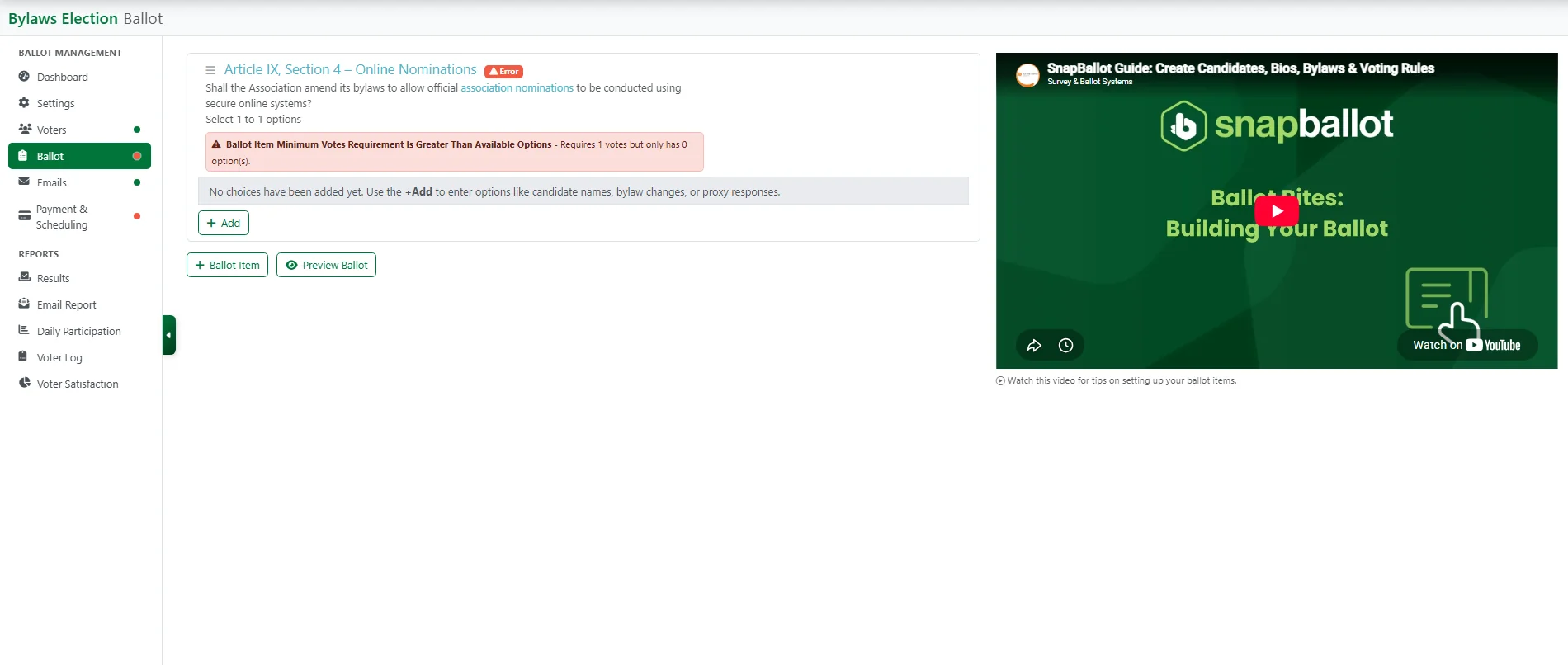
After creating and saving the ballot item, SnapBallot helps by displaying a reminder to add the voting choices. While the ballot item contains the amendment text, the voting choices create the actual vote.
Common response options include:
- Approve / Do Not Approve
- Yes / No
- Accept / Reject
- Approve Amendment / Reject Amendment
- Other custom responses required by your organization
The response options should clearly reflect the action being voted on and align with your organization's governing documents and election procedures.
Example 1: Simple Bylaw Amendment
1. Add the Ballot Item
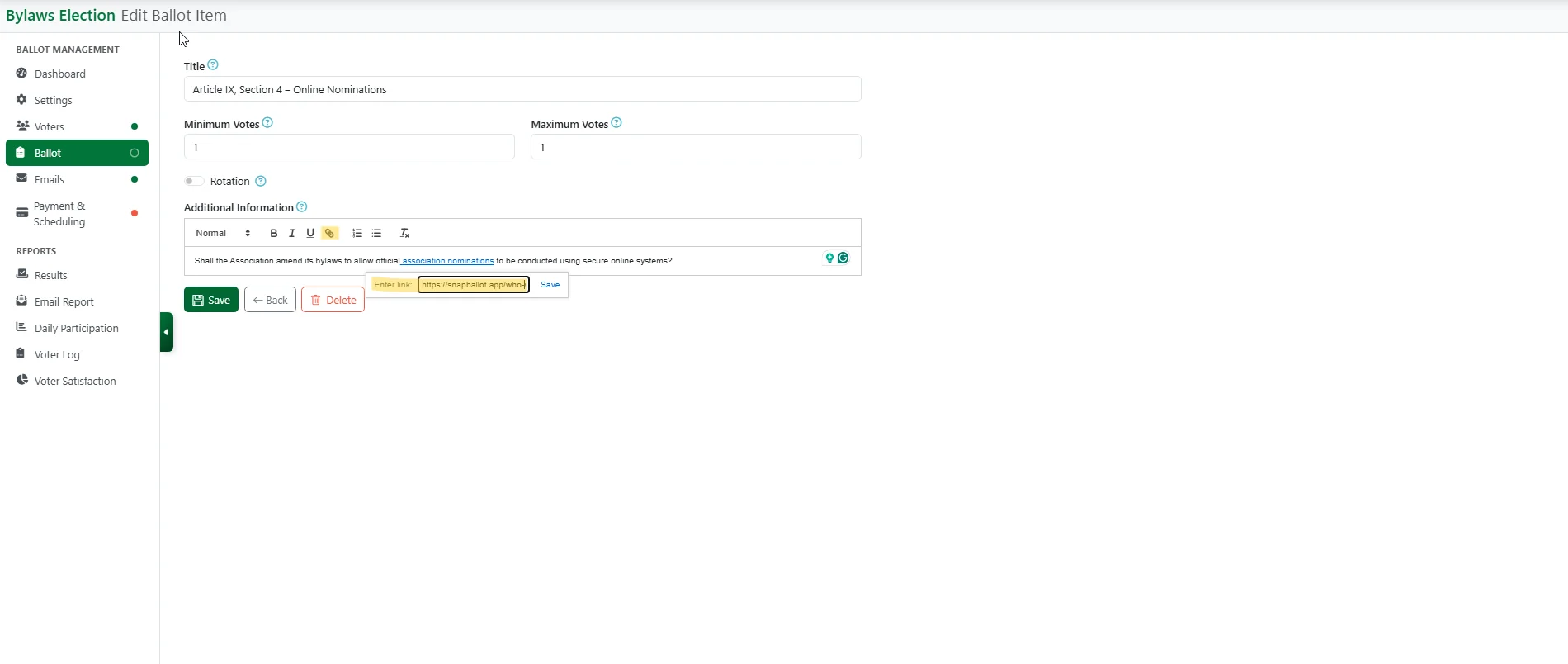
- Navigate to Ballot in the left menu and select Add Ballot Item. A helpful video within SnapBallot is displayed here as a resource to guide you.
- Enter the Title: Article IX, Section 4 – Online Nominations.
- This is the name of the item as it will appear on the ballot.
- Choose the Minimum Votes and Maximum Votes. See the info icons for helpful tips.
- A minimum setting of 1 makes the item required.
- Add Additional Information: Shall the Association amend its bylaws to allow official association nominations to be conducted using secure online systems?
- Text may be customized (size, bold, bullets, numbers, or clear formatting) for additional information, and there is no limit on text length.
- URL links may be added to include links to other resources.
- Click Save.
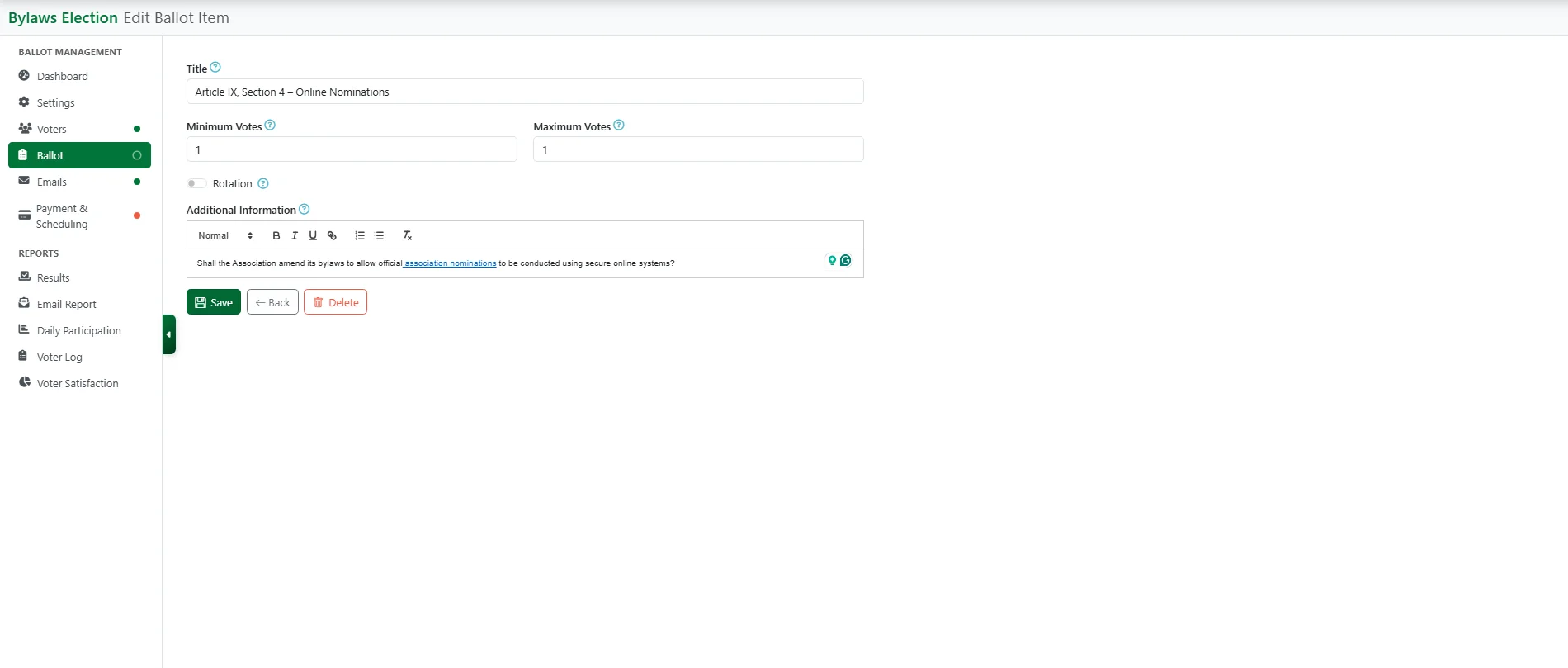
After saving the ballot item, SnapBallot will display a message reminding you to add the voter choices members will use to cast their vote.
2. Add Response Choices
- Click Add.
- Enter Choice 1: Approve
- Click Save.
- Enter Choice 1: Approve
- Click Add again.
- Enter Choice 2: Do Not Approve
- Click Save.
- Enter Choice 2: Do Not Approve
Pro Tip: Before publishing the ballot, select Ballot Preview to verify that the amendment text and voting choices appear exactly as intended from the voter's perspective.
What the Voter Sees - The Ballot Preview

Example 2: Board Term Limits Amendment
1. Add the Ballot Item
- Select Add Ballot Item and enter the amendment information.
- Title: Article IV, Section 2 - Board Term Limits
- Choose the Minimum and Maximum votes. See the info icons for helpful tips.
- Add Additional Information:
Current Language:
Directors shall serve terms of three (3) years and may be re-elected without limitation.
Proposed Amendment:
Directors shall serve terms of three (3) years and may be re-elected for no more than two (2) consecutive terms. A director who has served two consecutive terms may be eligible for re-election after a one-year absence from the board.
Summary:
This amendment introduces term limits to encourage fresh perspectives and broader member participation in leadership. It helps ensure that new voices have opportunities to serve while maintaining continuity and experience on the board.
- Click Save.
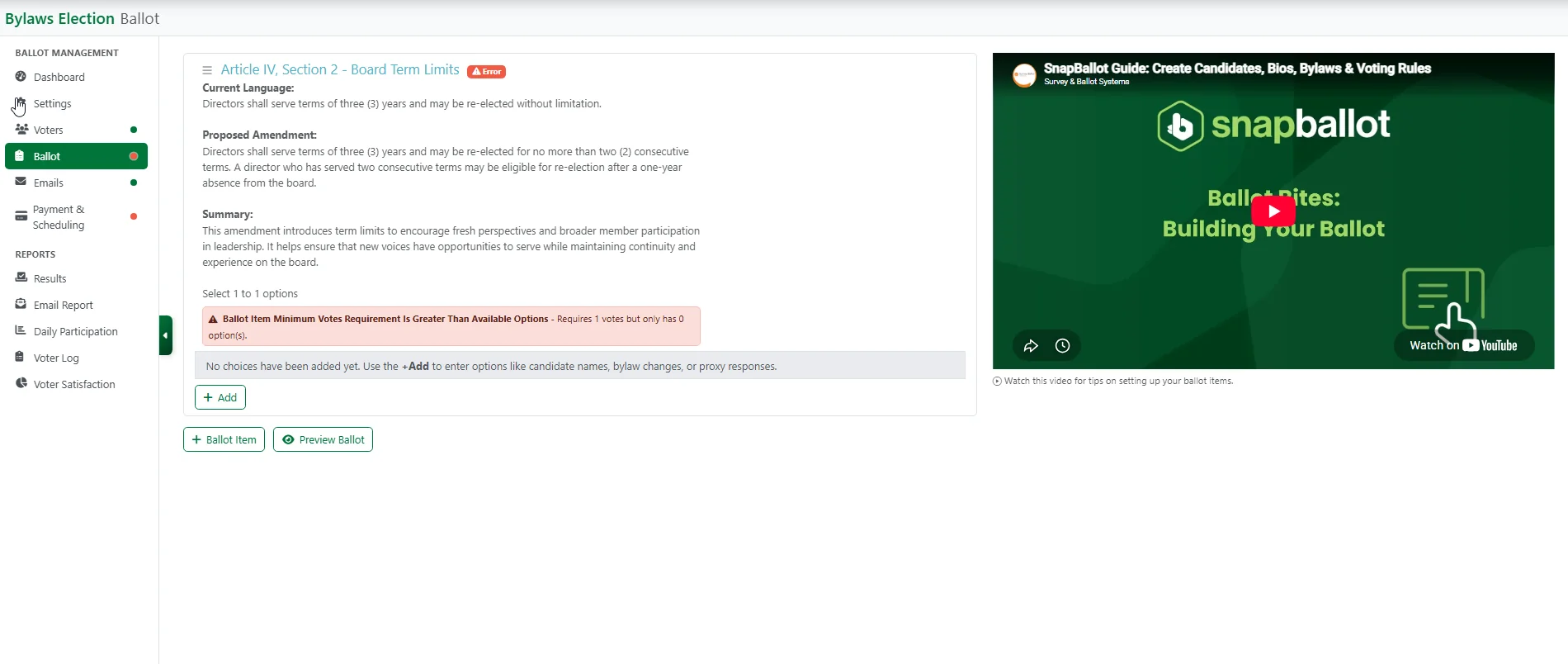
After saving the ballot item, SnapBallot will display a message reminding you to add the voter choices members will use to cast their vote.
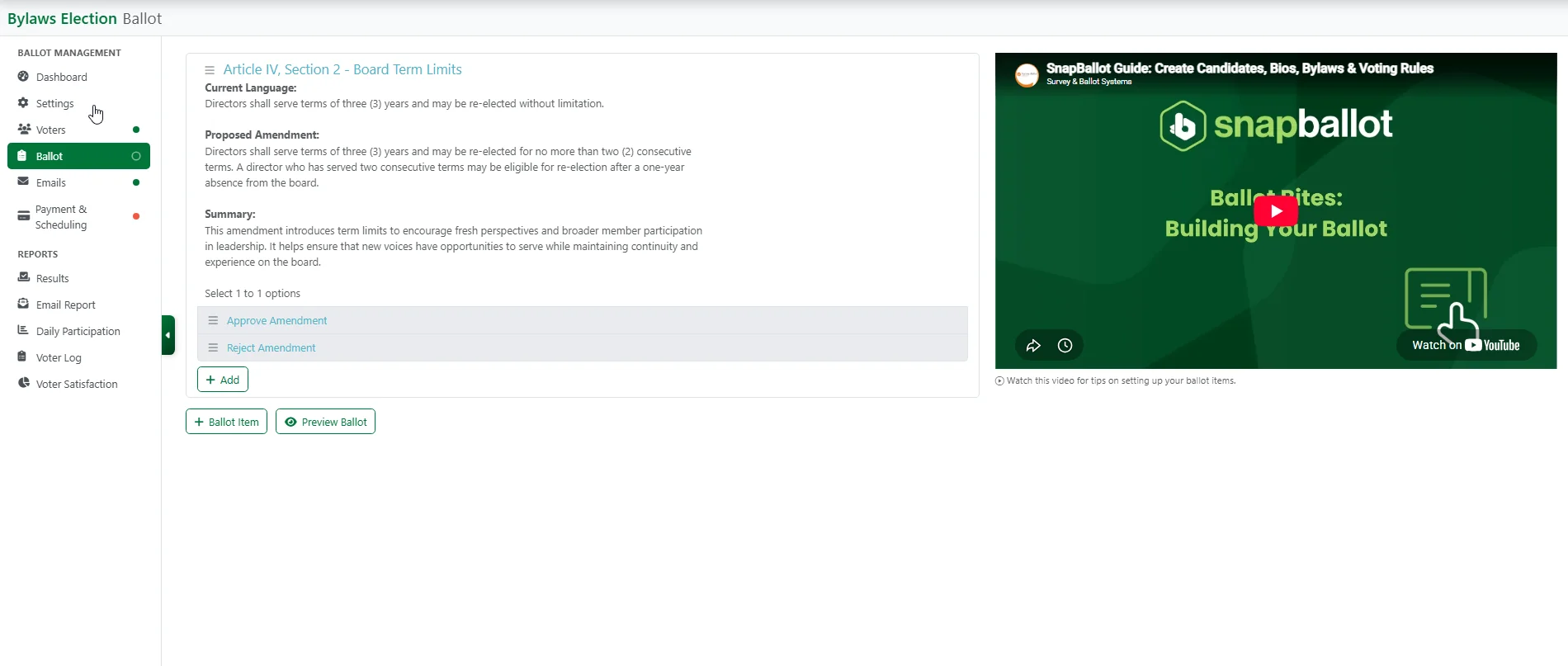
2. Add Response Choices
- Organizations may choose different wording based on their governing documents.
- Approve Amendment
- Reject Amendment
- Save each choice after entering it.
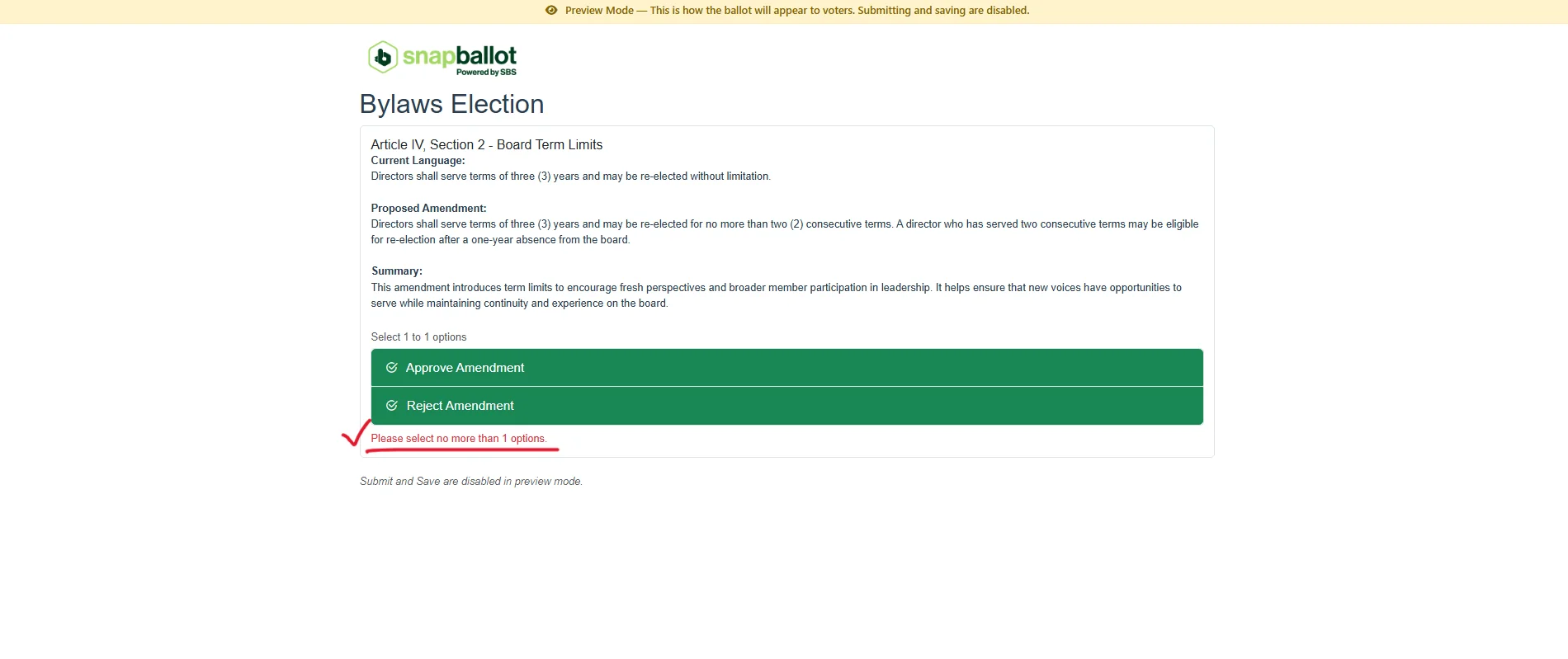
What the Voter Sees - The Ballot Preview
SnapBallot will warn the voter if they have selected more choices than allowed.
Example 3: Capital Expense Approval
The same process can be used for member approval of significant expenditures, special projects, or reserve-funded improvements.
1. Add Ballot Item
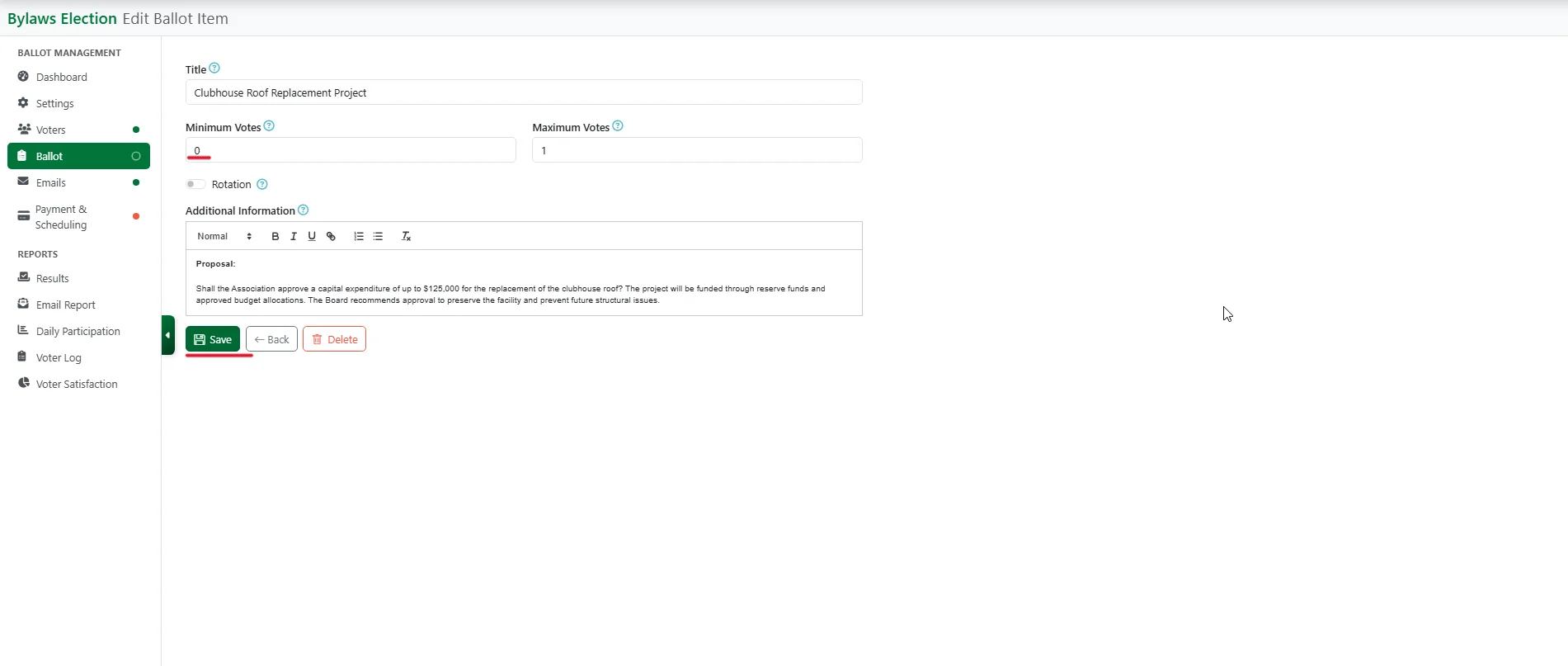
Select Add Ballot Item and enter the amendment information.
Title: Clubhouse Roof Replacement Project
Choose the Minimum and Maximum votes. See the info icons for helpful tips.
Add Additional Information:
Proposal:
Shall the Association approve a capital expenditure of up to $125,000 for the replacement of the clubhouse roof? The project will be funded through reserve funds and approved budget allocations. The Board recommends approval to preserve the facility and prevent future structural issues.
Click Save.
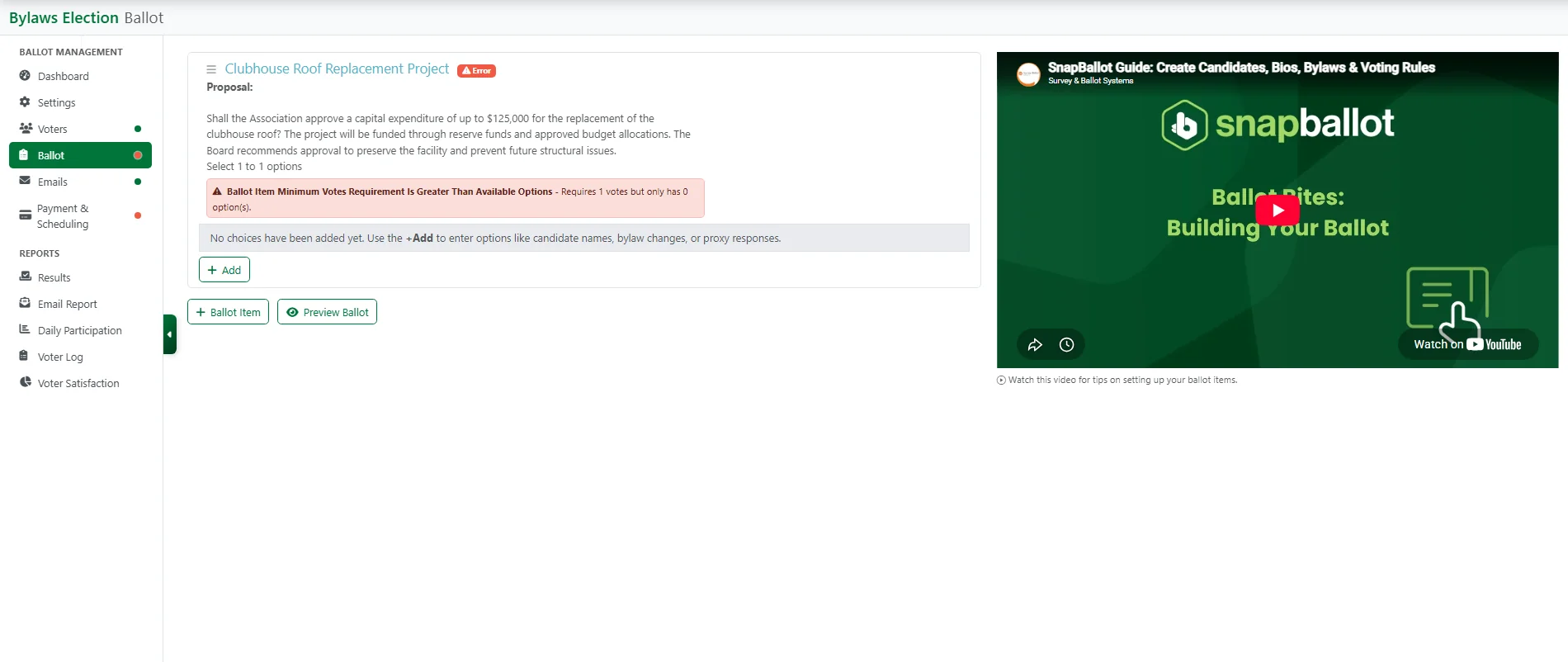
2. Add Response Choices
Depending on the organization's preferences, select the format:
- Yes
- No
Save each response choice.
What the Voter Sees - The Ballot Preview

Making Revisions
If you need to make changes before voting opens, from the Ballot page, click on the Item Title, select Edit, make any changes and be sure to Save.

Related articles
Building Your Ballot
How to build your ballot — creating ballot items, adding candidates and biographies, setting voting rules and rotation, filtering by…
SnapBallot Overview
A step-by-step overview of setting up an election in SnapBallot — from creating a ballot and uploading voters to configuring…

Using Multiple Filters
Learn how to use multiple filters in SnapBallot to target voters by region, state, chapter, member type, and more using…
Voter Support
Support voters with confidence — resolve common issues, check status and resend voting links, update emails, send a safe-sender notice,…
From The Blog
Checklist: Preparing for Your Next HOA Election
Planning will help you run a successful, problem-free HOA election. Follow this checklist to confidently plan every stage of the…

Everything You Need to Launch Your First Online HOA Election
Digitizing your HOA elections will help you save time, preserve resources, and give homeowners a better experience.

How To Run a Secure Online Vote Without IT Support
No IT? No problem. Follow these steps to plan a secure online vote without any technical experience.