
Using Multiple Filters
Last updated August 25, 2026
Ballot filters limit who can vote on a specific item. This guide shows how to combine filters using AND and OR logic to target exactly the right voters.
View Transcript
[0:00]: Welcome to Ballot Bites. Today's bite is using multiple filters. From the left menu, navigate to Ballot.
[0:09]: The ballot items shown here will share examples of using multiple filters. Ballot filters limit voting to specific member types for a selected item. Filtering requires the voter upload list to include the data that you would like to filter. This could be a region, a state, chapter, a zip code, or perhaps a member type.
[0:32]: Our first example here will show creating an item with an "and" filter, which means that all values must be true for the member to receive the ballot. So for our East Committee Chair, we're going to go ahead and add a filter.
[0:49]: For our voter column, we'll select "Region." And for the value, we'll go ahead and select "East." Snap Ballot automatically populates the drop-down values from your voter upload data. We'll click "Create." And now you can see we have one filter set up for Region and East.
[1:10]: Once our region is set up, we're going to click on that. You'll see now that these are all the voters that we currently have in this filter for Region and East. We'll add a column value to this filter for those members who have a status of "Active." So we'll go ahead and choose those and click "Create."
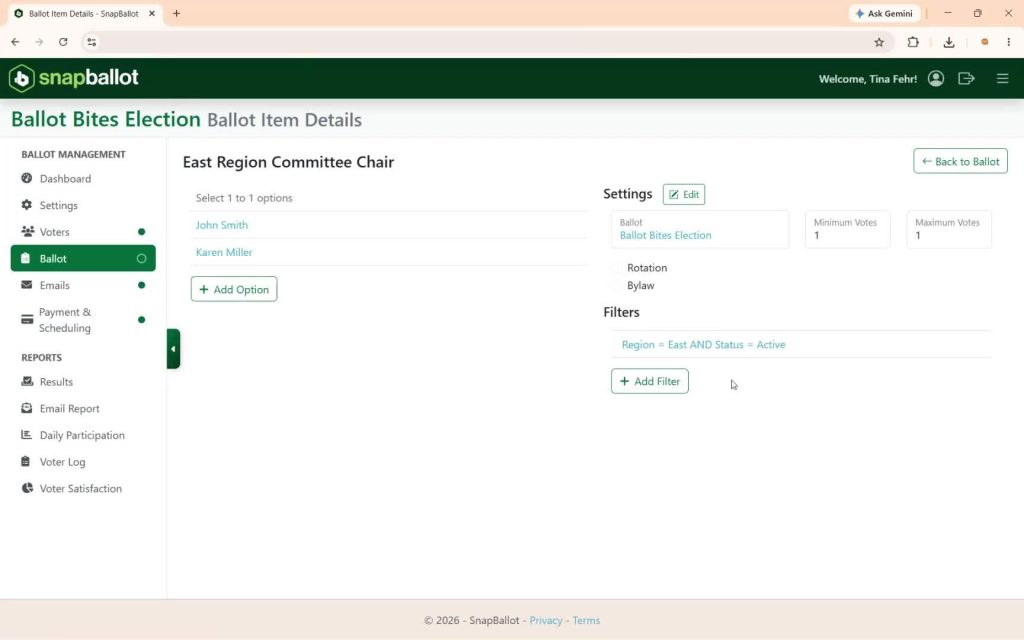
[1:35]: Now you can see in the summary that this ballot item will be delivered only to those in the East region and those who have an active status. If we go back to our ballot item, the filter will now display Region as East and Status as Active for this item.
[1:57]: Our next example will show how to set up a filter with an "or" option. This filter is created using separate filters where either or any option would need to be true for that member to receive the ballot item: the Director of California and Hawaii Chapter.
[2:17]: We're going to add a filter. The voter column dropdown again will automatically populate the values from your voter upload data. We'll choose "State" and "California" first, and we're going to click "Create." Now you'll see we have a filter set up that will only show this ballot item to those voters located in the state of California.
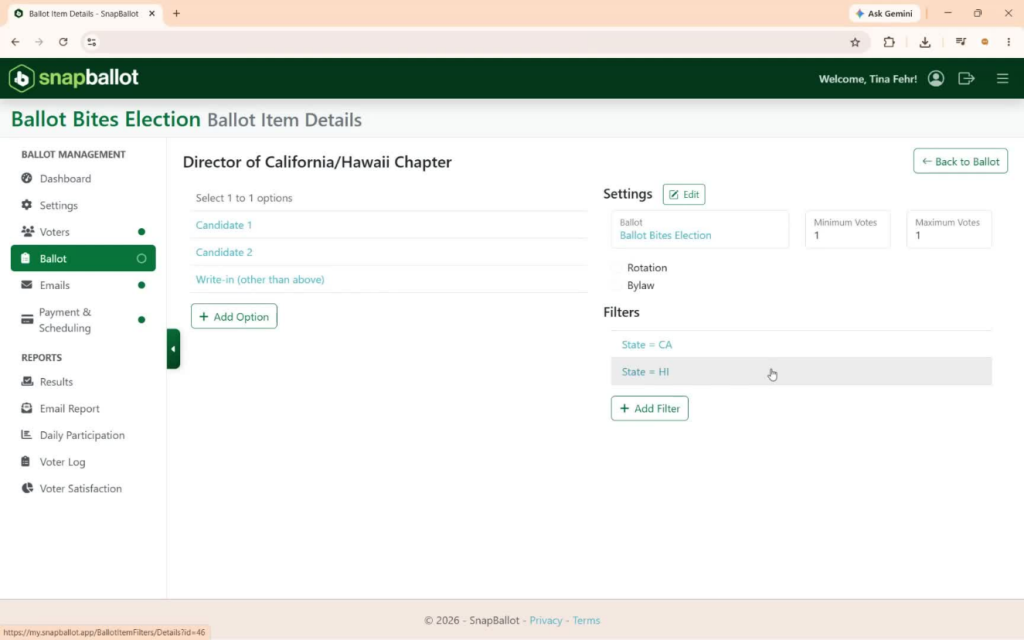
[2:42]: Now, let's add a second filter to include the members in the state of Hawaii. So, again, we're going to choose "State." For this one, we'll choose "Hawaii" and click "Create." The Director for the California and Hawaii Chapter has two filters set up. So, only those voters in the states of California or Hawaii will receive this ballot item.
[3:08]: When you're finished, you can go ahead and click "Back to Ballot." You'll return to your ballot dashboard. If you need to make changes, click the ballot item title, choose the filter, and you can delete filters or values or add additional filters as needed. Go ahead and choose "Back to Ballot" to return to your dashboard.
[3:32]: This concludes the overview of creating multiple filters. Thanks for watching. Grab another bite in our series of quick tips at any.
What ballot filters do
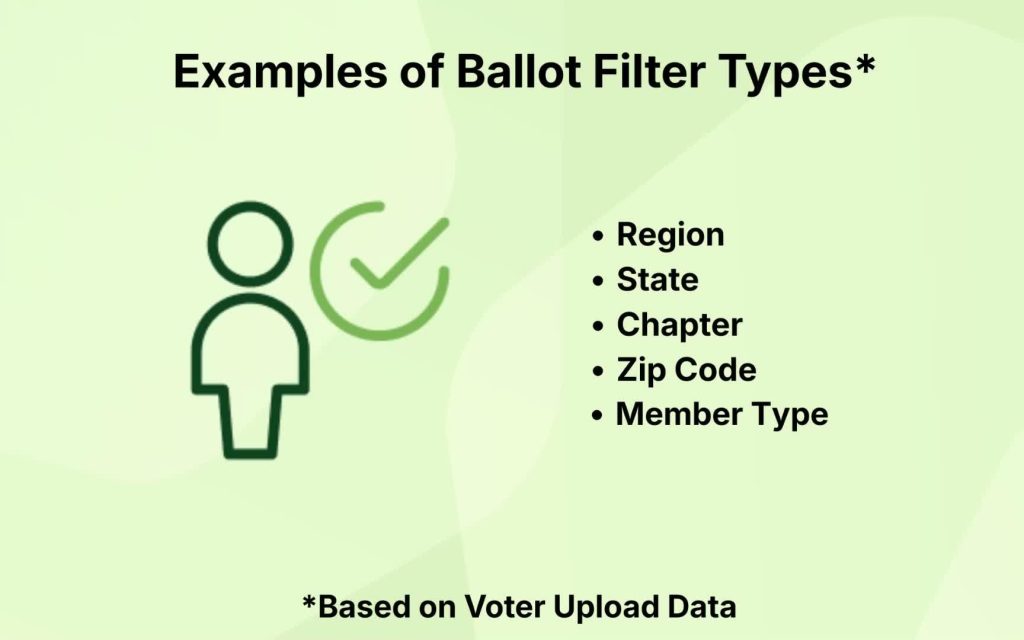
- Ballot filters limit voting to specific member types for a selected item.
- To use filters, your voter upload list must include the data you want to filter by.
- Common filter fields include Region, State, Chapter, Zip code, and Member type.
Create an AND filter (all conditions must be true)

Use an AND filter when all conditions must be true for a voter to receive the ballot item. For example, voters who receive the East Committee Chair ballot must be from the East region and have a status of active.
- Click the ballot item title to open Ballot Item Details.
- Click + Add Filter.
- Choose Region for the voter column.
- Select East for the value, then click Create.
- Click the filter you just created, then click + Add Column Value to add the second condition.
- Choose Status for the voter column and Active for the value.
- The filter now includes Region = East AND Status = Active.
Create an OR filter (any condition can be true)
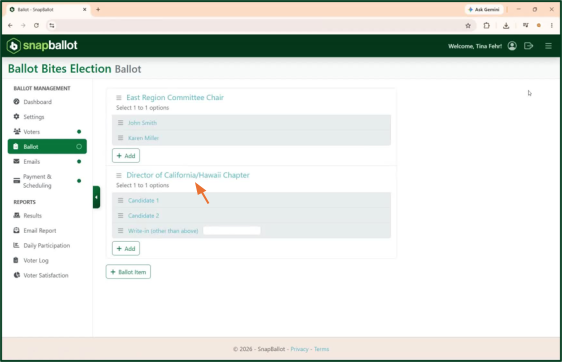
Use an OR filter when any one of multiple conditions can be true. For example, for the California and Hawaii Chapter Director ballot, only voters who live in California or Hawaii should receive it.
- Add a filter. Choose State for the voter column, select California for the value, and click Create.
- Click + Add Filter again to add a second, separate filter.
- Repeat the same process with State for the voter column and Hawaii for the value.
- With both filters in place, the ballot item has two separate filters, and voters in California OR Hawaii will receive it.
Note: This is the key difference between the two — with AND, all conditions must be true; with OR, any one condition can be true.
Return to the dashboard or edit filters

- Click Back to Ballot to return to the ballot dashboard.
- To make changes later, click the ballot item title, select the filter, then delete filters or values as needed or add additional filters.
Related articles
Building Your Ballot
How to build your ballot — creating ballot items, adding candidates and biographies, setting voting rules and rotation, filtering by…

How to View & Export Final Election Results
How to access, view, and export your election's final results — the report types available, real-time updates, and downloading to…
SnapBallot Overview
A step-by-step overview of setting up an election in SnapBallot — from creating a ballot and uploading voters to configuring…
Uploading Your Voter List
Learn how to upload your voter list in SnapBallot, map voter data, set filters, review upload, and manage voter information…
From The Blog
Checklist: Preparing for Your Next HOA Election
Planning will help you run a successful, problem-free HOA election. Follow this checklist to confidently plan every stage of the…

Everything You Need to Launch Your First Online HOA Election
Digitizing your HOA elections will help you save time, preserve resources, and give homeowners a better experience.

How to Simplify Elections for Member-Driven Associations
Co-ops, HOAs, colleges, and many other associations rely on elections to make members’ voices heard. Elections are an essential part…